




Automatic FFL works on your Magento or Adobe Commerce storefront. When a customer checks out with a firearm or ammunition that requires an FFL, it asks them to pick a dealer and uses that dealer’s shipping address. Orders that do not require an FFL check out as usual.
Step 1 Install the extension
Install the Automatic FFL extension with Composer. See the developer installation instructions for the commands.
Step 2 Create an Automatic FFL account
Visit the Automatic FFL admin and create an account, or sign in to your existing account.
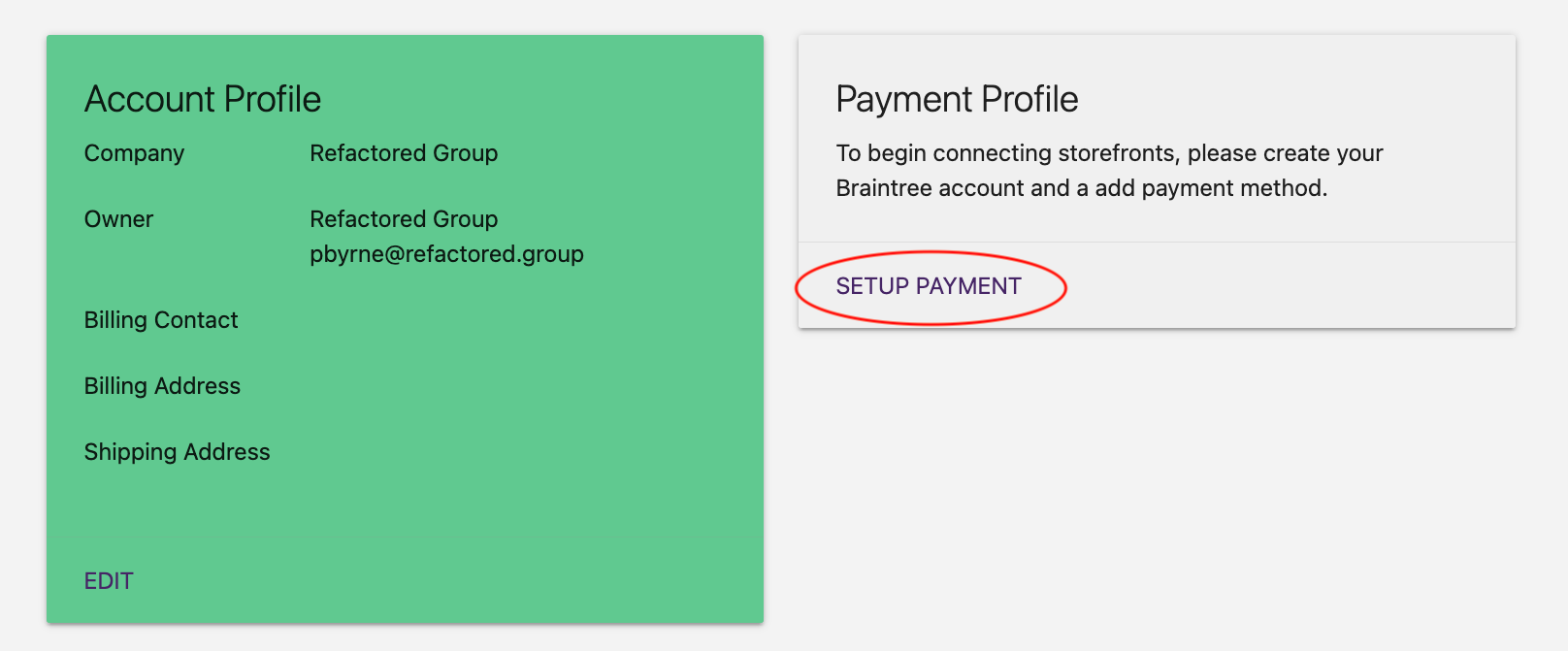
Step 3 Add a payment method
Click SETUP PAYMENT and follow the instructions to save your payment method in our payment portal.
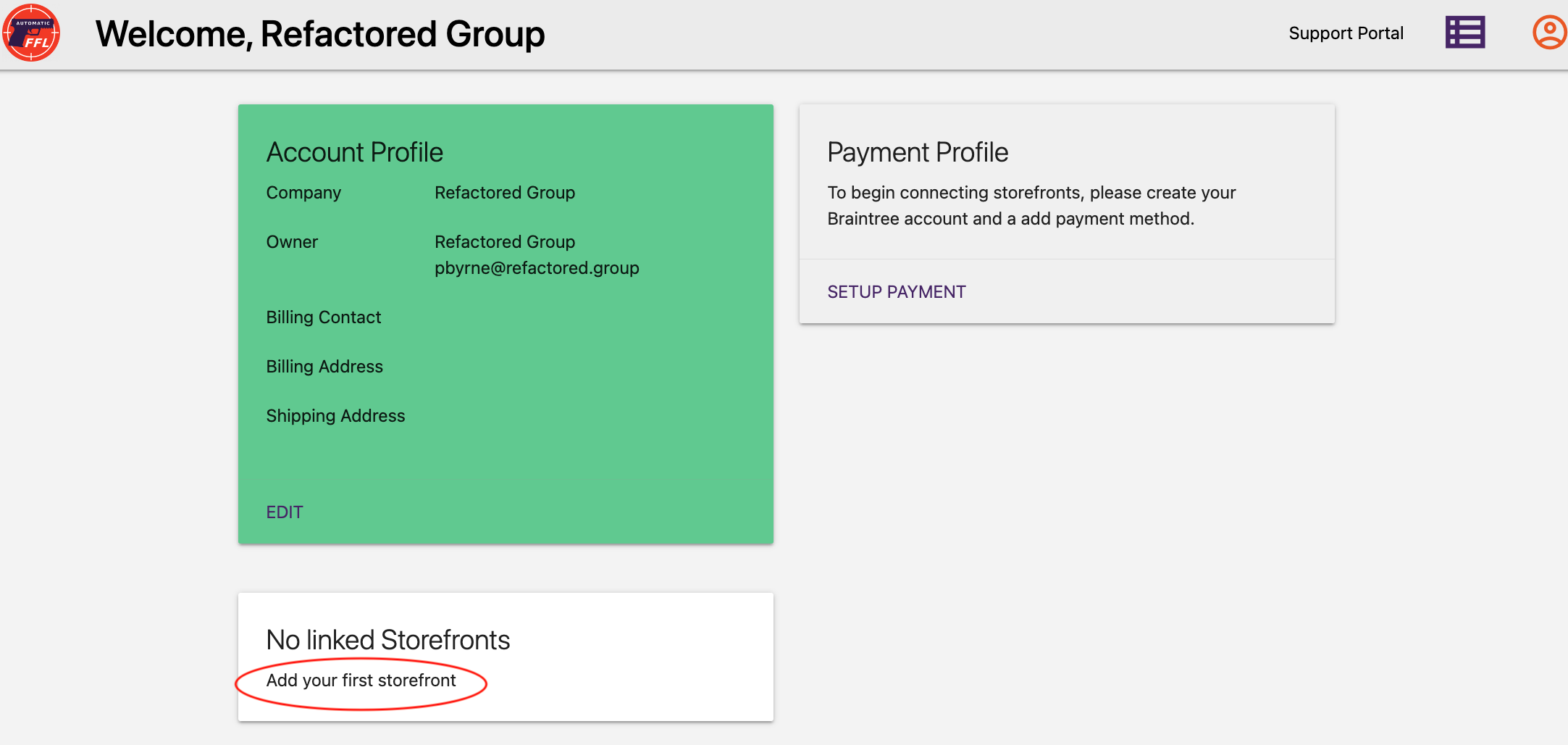
Step 4 Create a store
- Click Add your first storefront, or add another store from your Automatic FFL dashboard.
- Select Magento as the ecommerce platform.
- Enter your storefront’s website address, starting with
https://, and save the store.
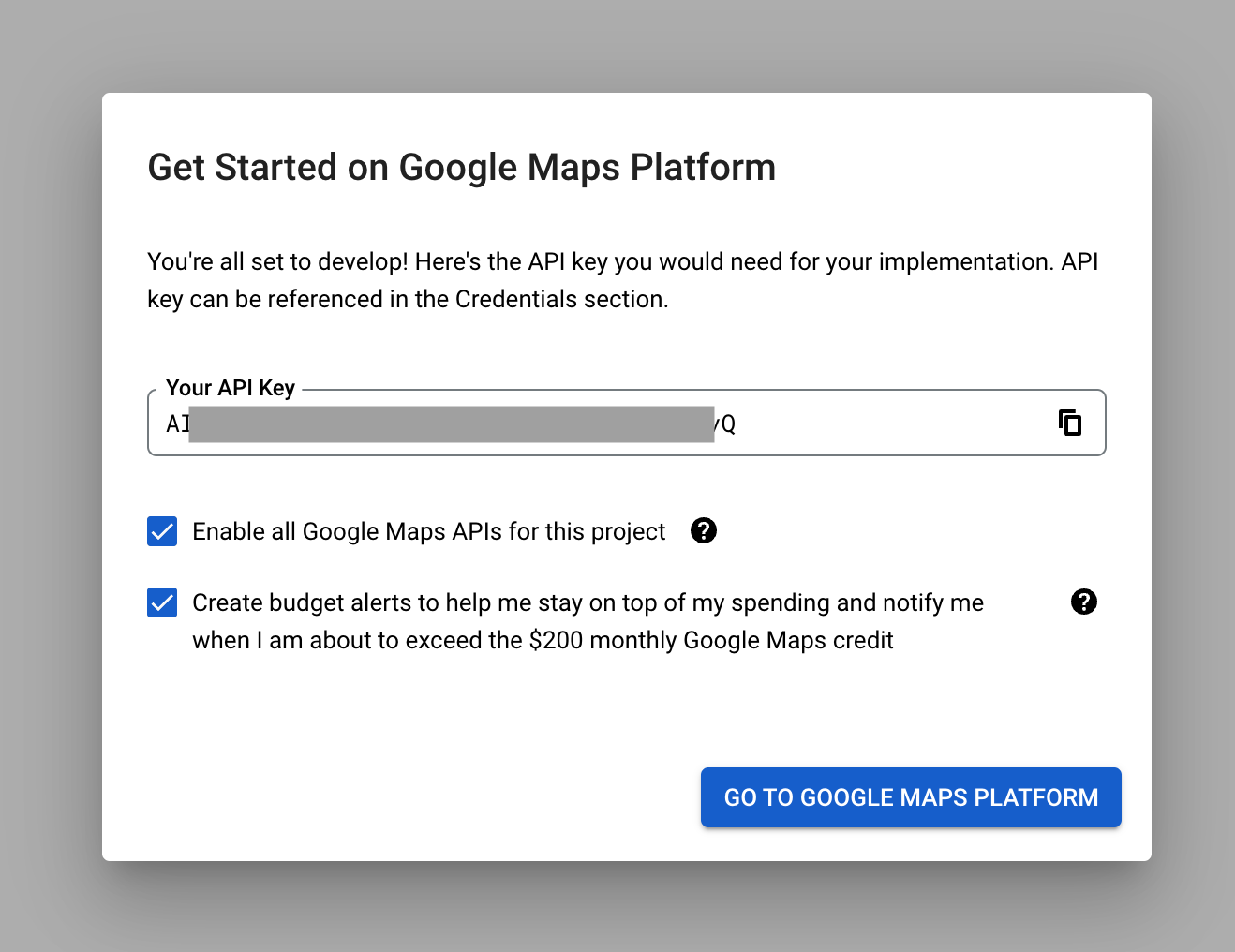
Step 5 Set up Google Maps
Visit Google Maps Platform to create an API key, or use an existing key. You will paste this key into Magento in the next step.
Step 6 Configure the extension
-
In the Automatic FFL admin, click Edit on your store to find the Store Hash and Store Secret.
-
In your Magento admin, go to Stores > Configuration > Refactored Group > Automatic FFL.
-
Set Enabled to Enable.
-
Paste in the Store Hash, Store Secret, and your Google Maps API key.
-
Leave Sandbox Mode set to No unless you are connecting a sandbox Automatic FFL store.
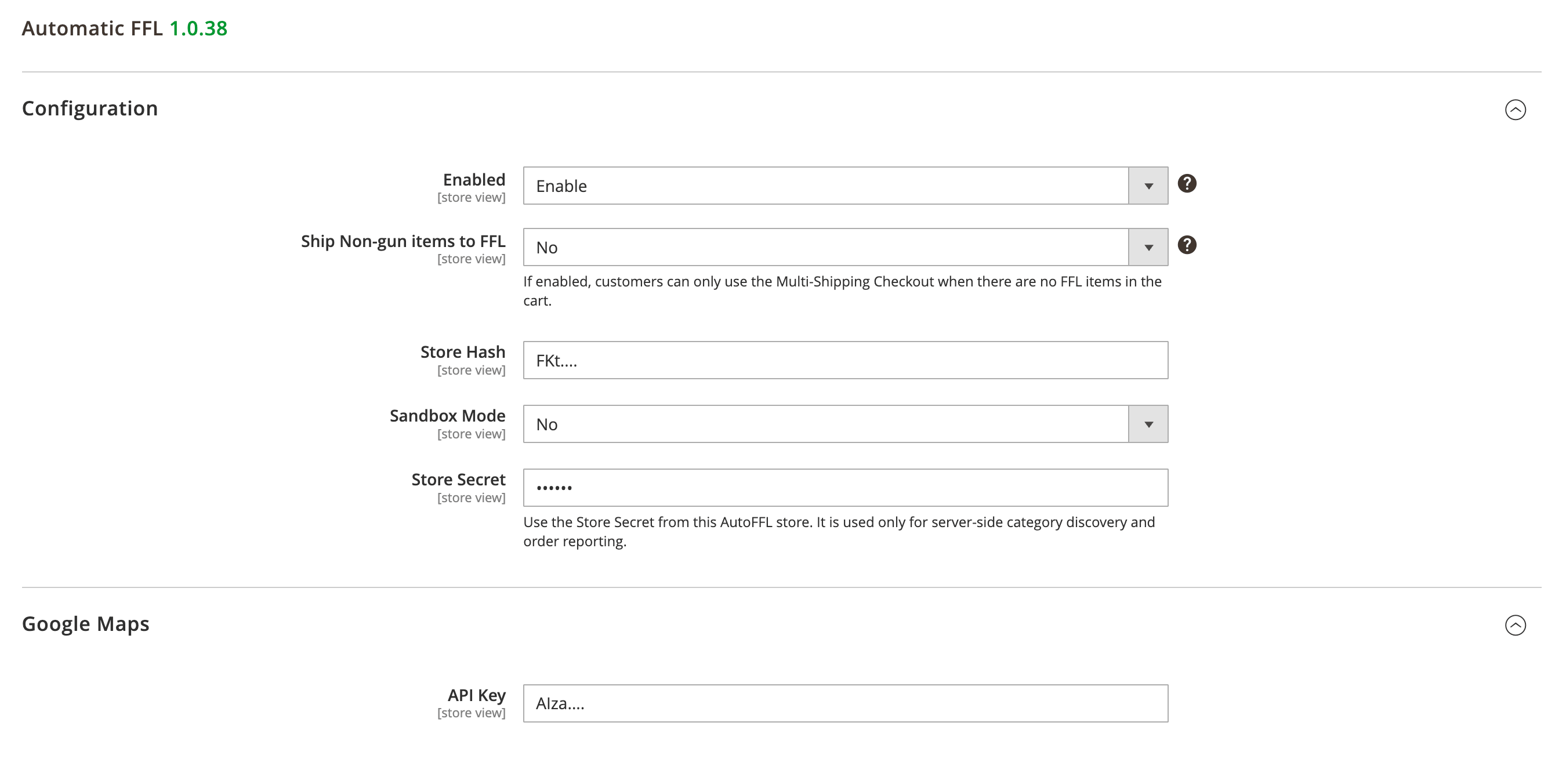
The Automatic FFL settings in your Magento admin. -
Click Save Config and refresh the cache if Magento asks you to.
Step 7 Mark your firearm and ammo products
The quickest way to flag your products is to mark whole categories as Firearms or Ammo.
-
Open the Automatic FFL dashboard.
-
Click Edit on your Magento store.
-
Open Firearm Categories and Ammo Categories, then check the categories you want to mark.
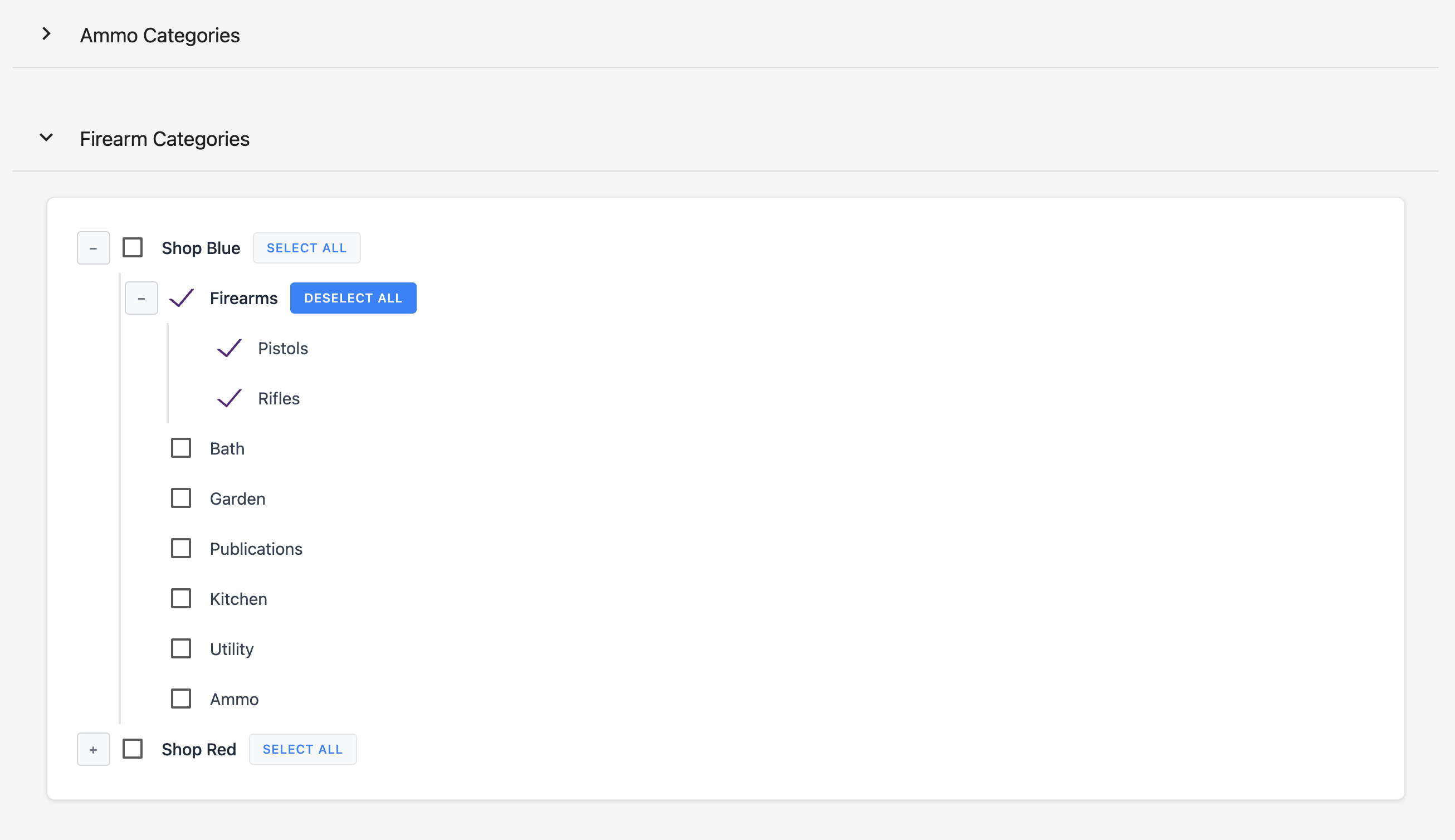
Marking categories as Firearms or Ammo in the Automatic FFL dashboard. Your store's categories appear here. -
For ammo, turn on Add-on Ammo Subscription.
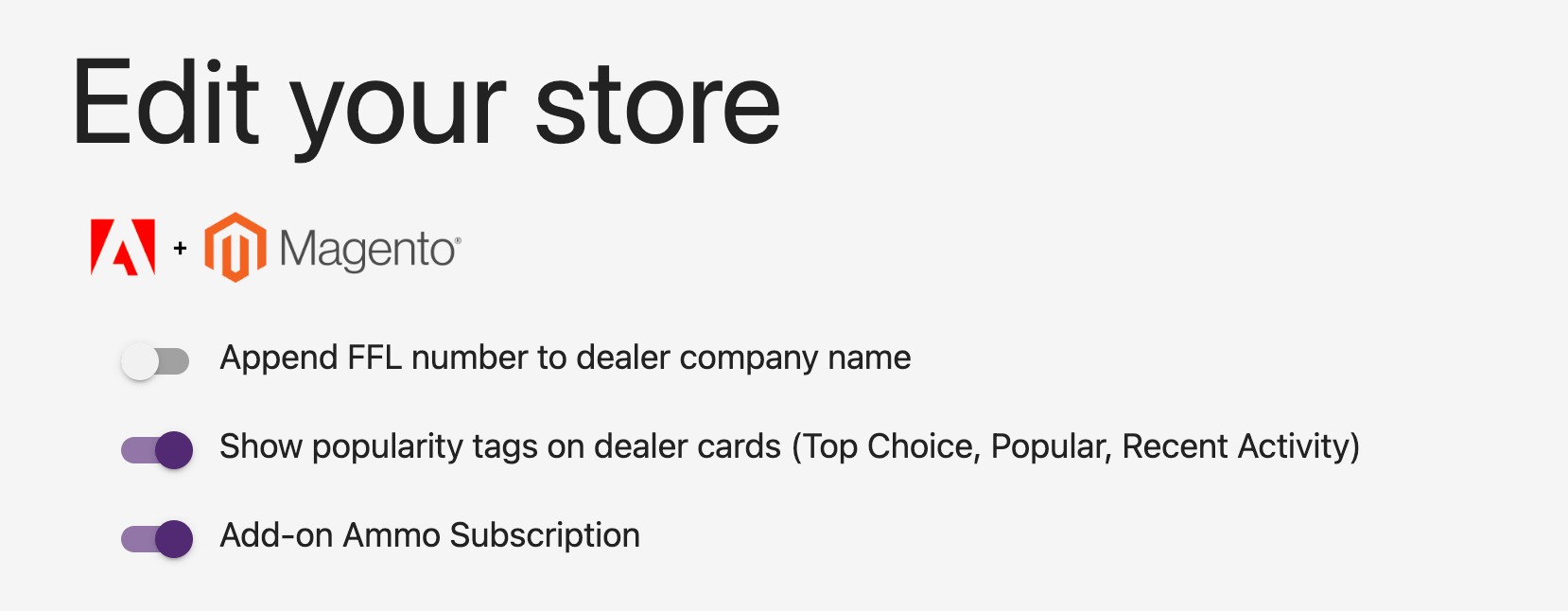
The Add-on Ammo Subscription setting on your Magento store. -
Click Update to save.
If a product belongs to both a firearm category and an ammo category, it is treated as a firearm and always requires an FFL.
Marking firearms per product
You can also mark firearms individually instead of by category.
Installing the extension adds an attribute called FFL Required. Make sure it is included in your firearm attribute sets, then turn it on for each firearm. You can also update this setting in bulk.
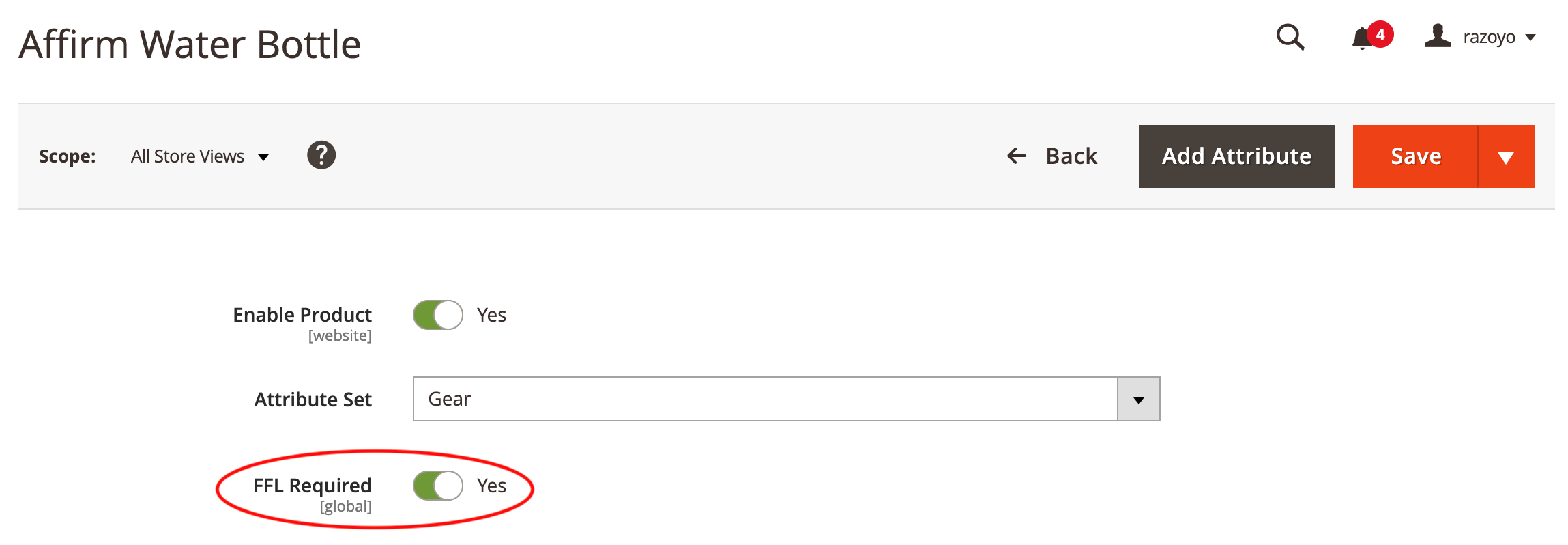
Category settings take priority over FFL Required. A product in an ammo category follows your ammo state rules even if this attribute is turned on.
Step 8 Choose the ammo states requiring an FFL
If you sell ammo, click Ammo in the Automatic FFL dashboard. On the Shipping Rules page, check the states where ammunition must ship to an FFL. This page saves automatically.
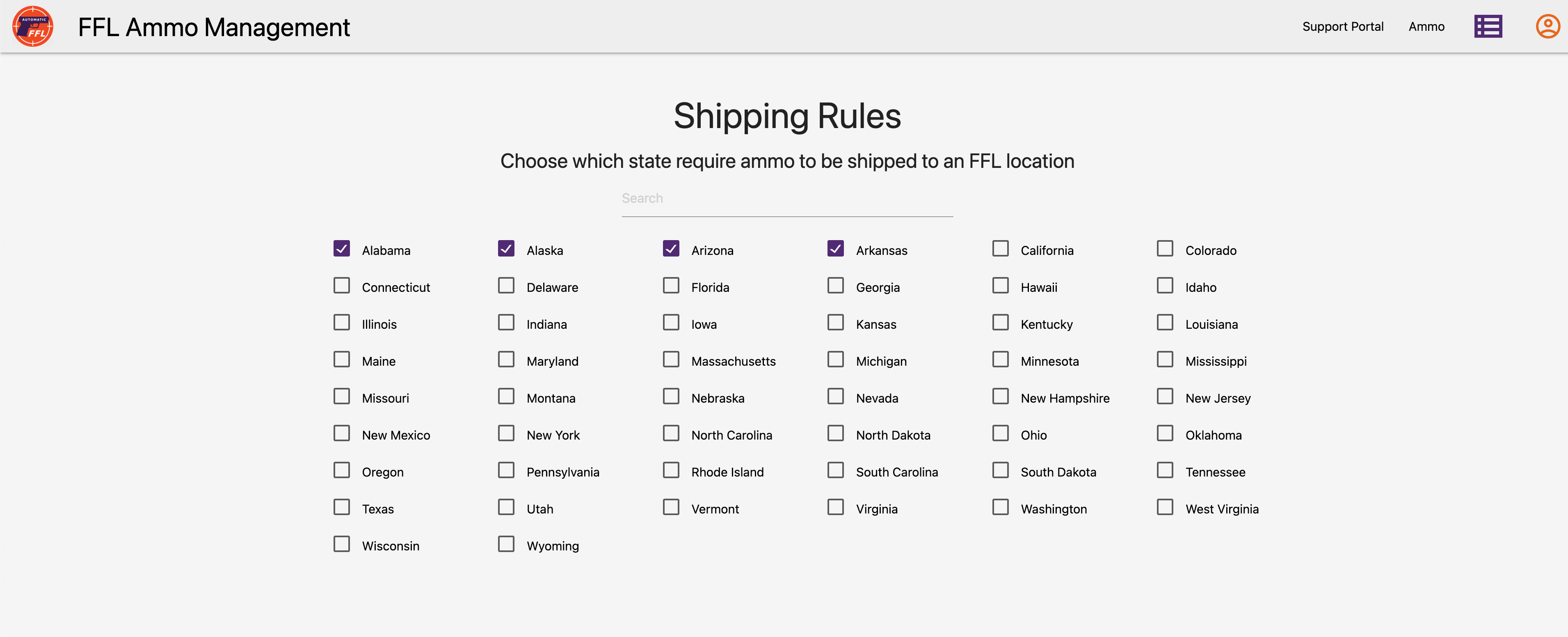
Customers shipping ammo to a selected state will be asked to pick an FFL dealer. Ammo going to other states can ship to the customer’s address.
Step 9 How checkout works
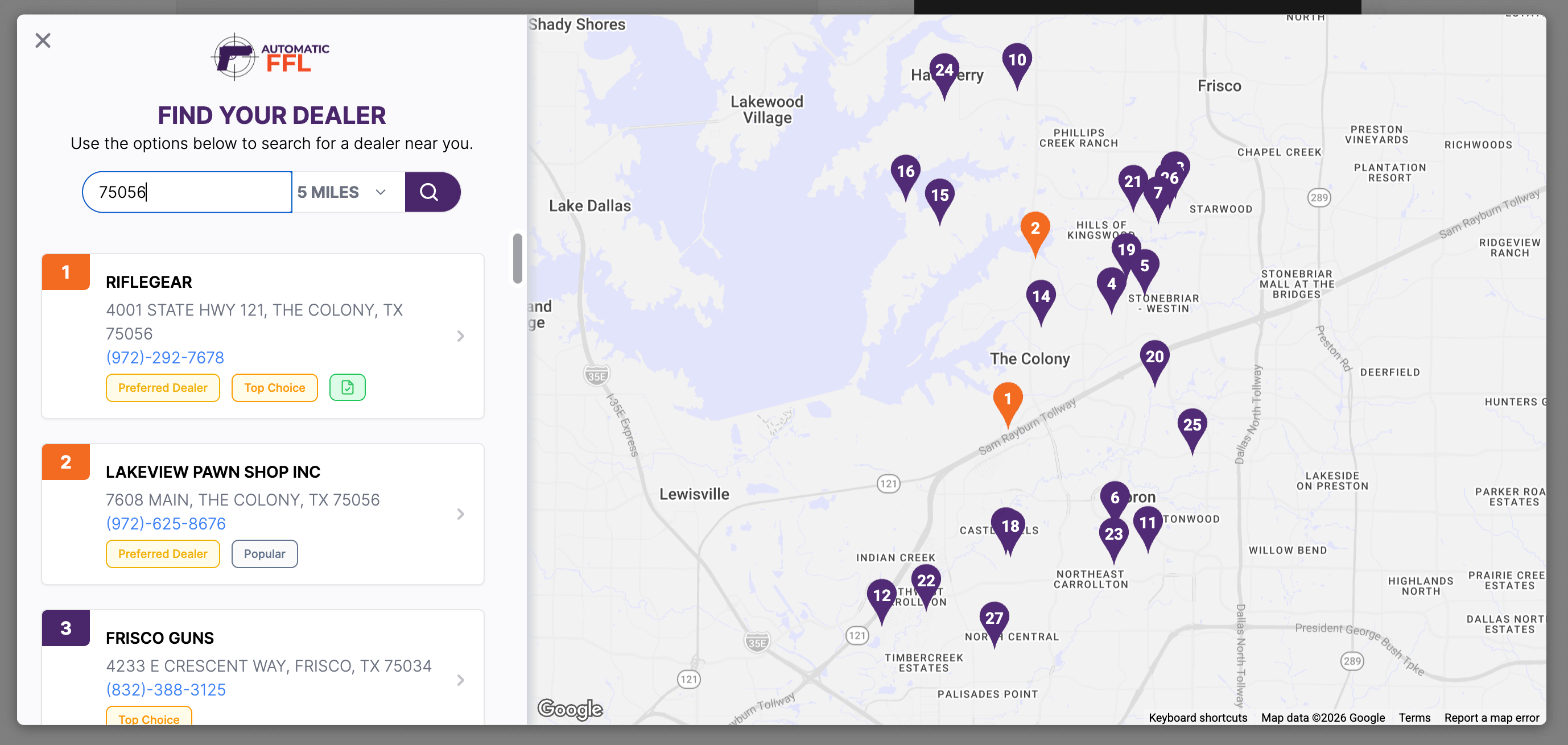
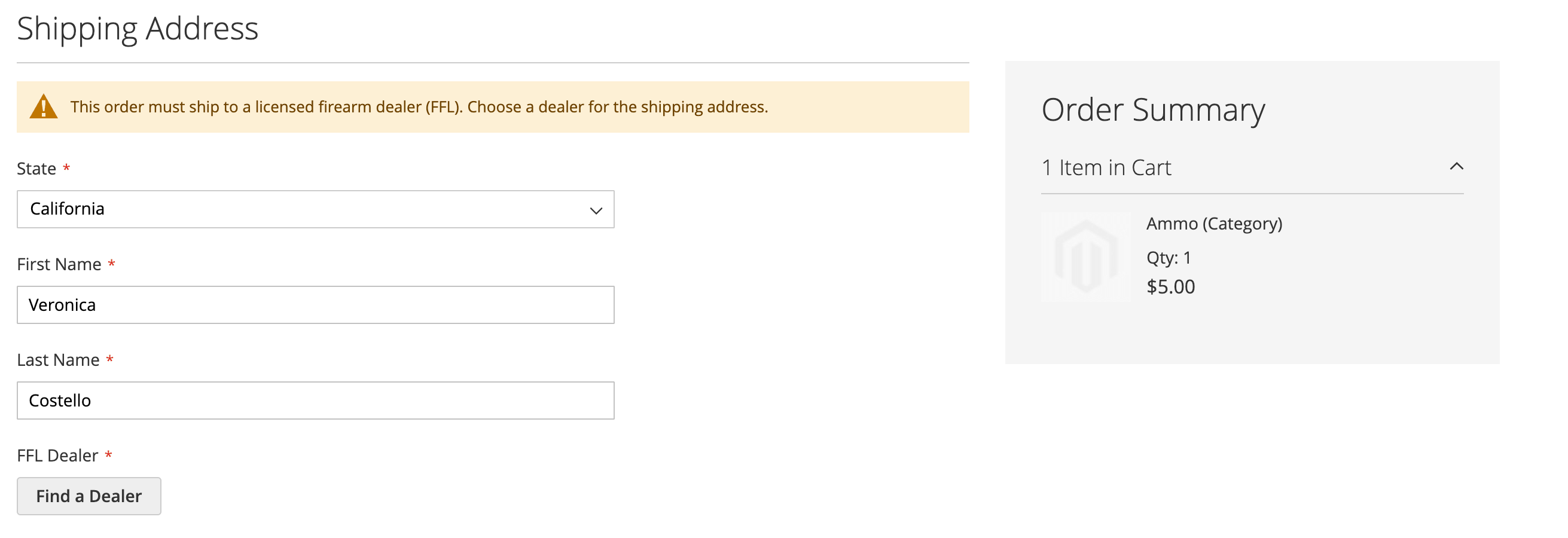
When a customer checks out with a firearm, they enter their first and last name and click Find a Dealer. They search for a dealer, select it, and continue with checkout. The shipping address uses the customer’s name and the dealer’s address.
Ammunition
Ammo acts as a wild card at checkout. Depending on the customer’s selected destination state, it behaves like either a regular product or an FFL-required product.
When the selected state requires an FFL, the customer chooses a dealer for the ammo shipment. Otherwise, the ammo can ship to the customer’s address. Changing the state updates this requirement. The same rules apply when ammo is part of a mixed cart.
Mixed carts
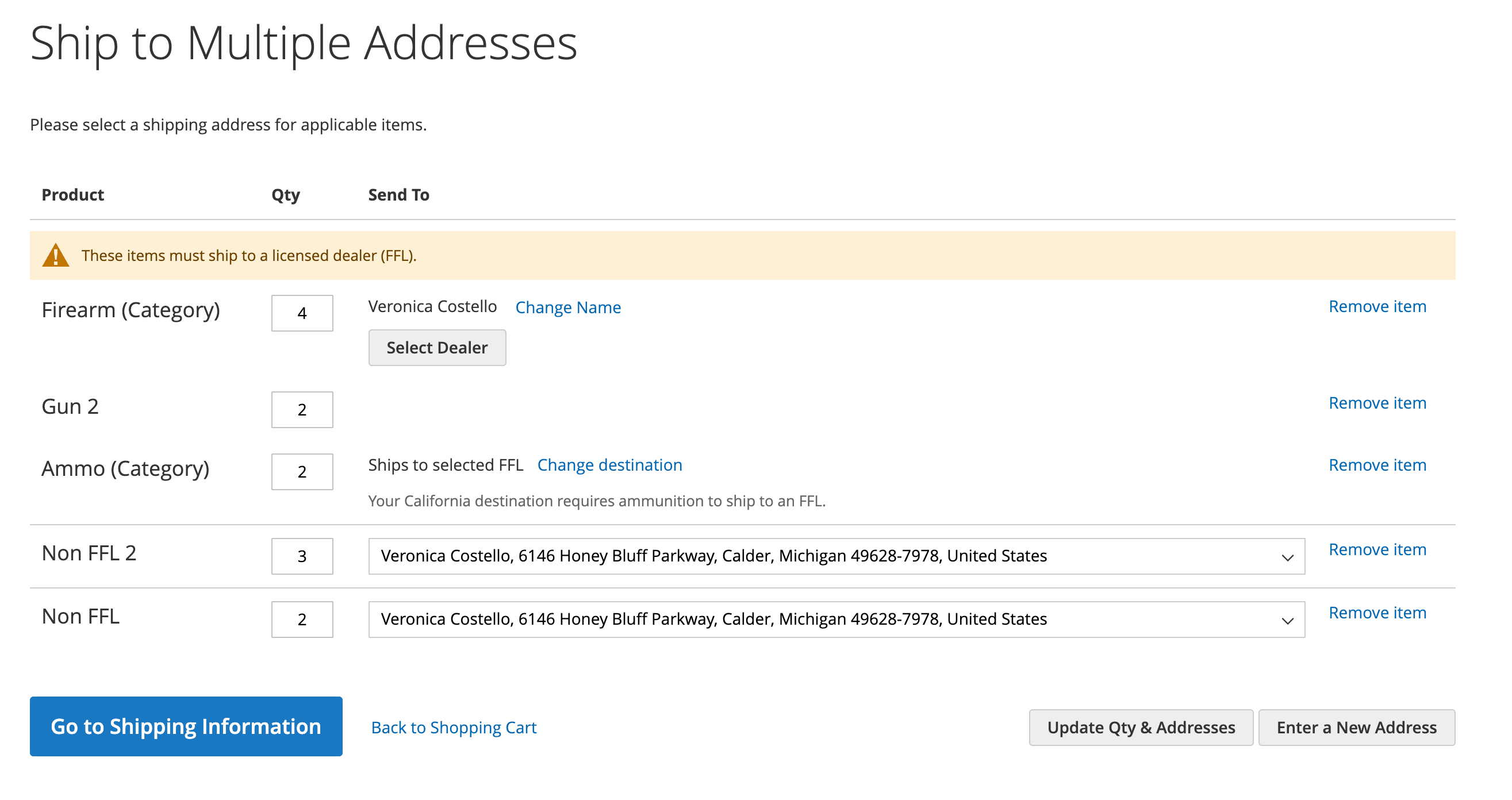
When a cart contains a firearm and ordinary products, Magento’s multiple-address checkout lets the firearm go to the dealer and the other products go to the customer’s address. Shoppers must sign in or create an account to use this checkout.
For carts that also contain ammo, the customer’s intended destination determines where the ammo goes. Ammo that requires an FFL joins the firearm shipment at the selected dealer. Other ammo can go to the customer’s address.
Step 10 View FFL information on your orders
Go to Sales > Orders in your Magento admin and open an order.
The Information tab includes an FFL Dealer Information table with the dealer’s license number, expiration date, and a link to ATF eZ Check. A link to the FFL certificate is included when available.
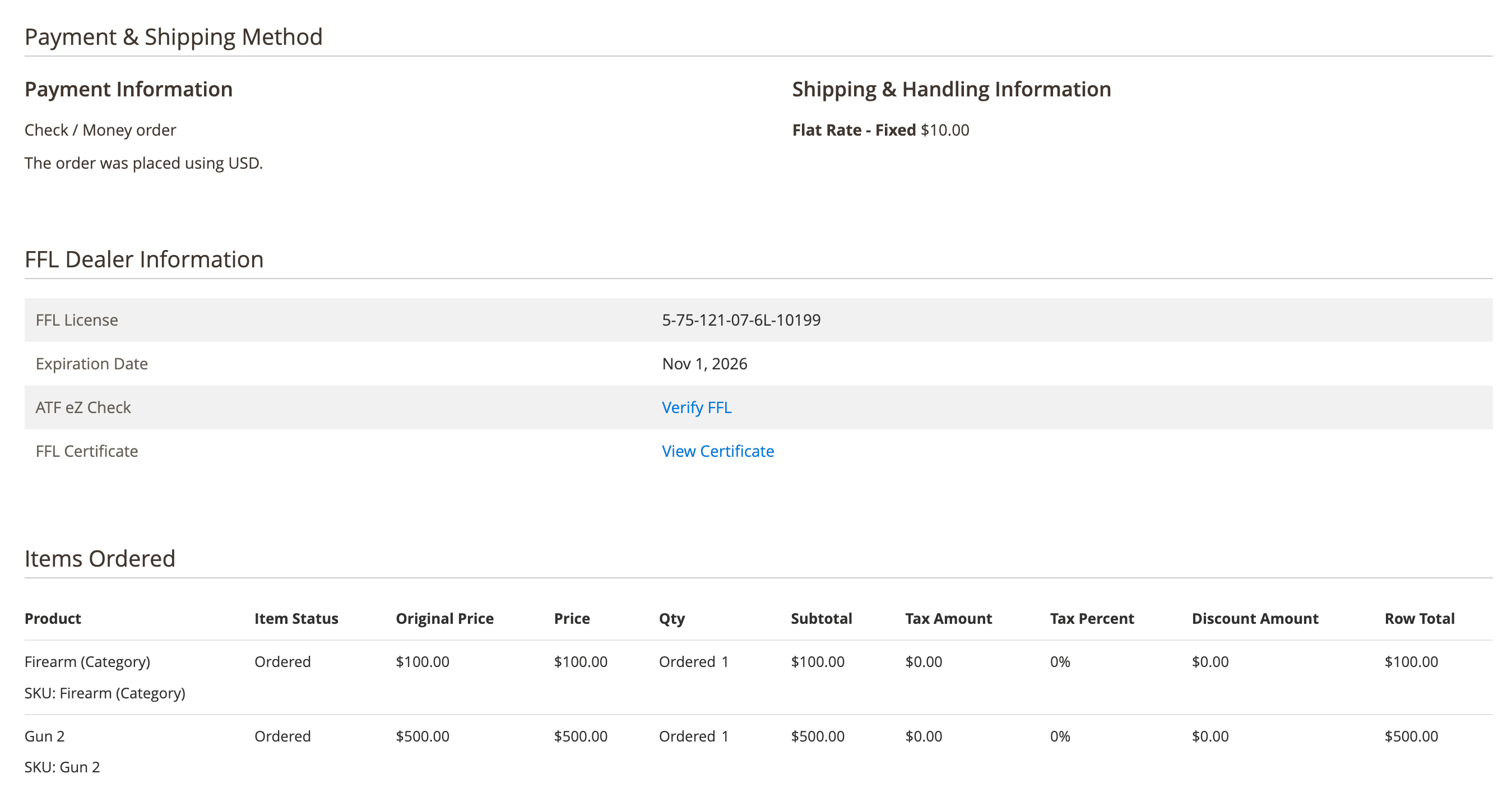
Automatic FFL also adds these details to an order comment under Notes for this Order.
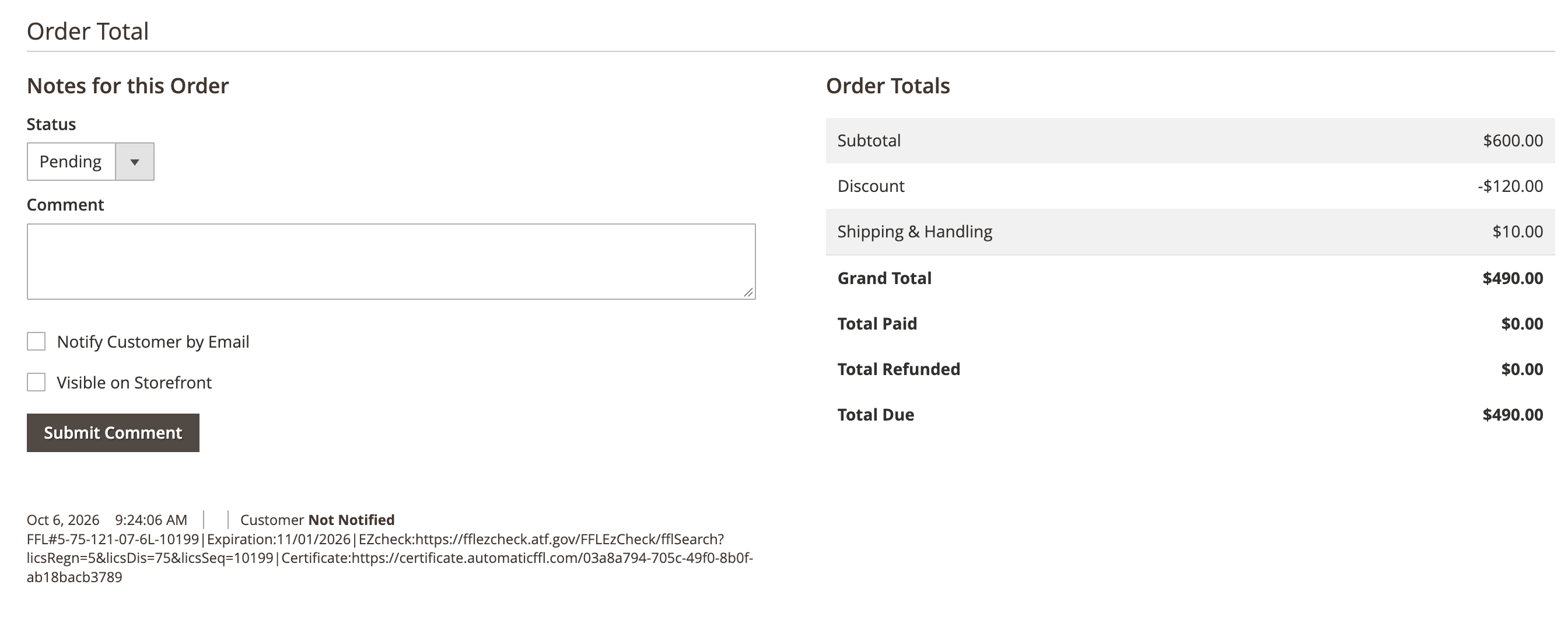
When Magento creates separate orders for different shipping addresses, the FFL details appear on the order shipping to the dealer.
Dealer management
Automatic FFL gives you the ability to customize the list of dealers available during checkout. See the Automatic FFL documentation for complete details.